
How To Prepare for An upcoming episode Recording
Thank you for your interest in participating in an upcoming Behind The Premium Network series episode.
In preparation, our goal is to make sure your expertise comes through clearly on camera and in audio. Looking and sounding your best only takes a little prep on your side, and we've tried making it as easy as possible.
Below are our
8 best-practice tips for joining, engaging, and technical suggestions to ensure you have the best episode experience. Then come recording day, you can show up ready, engaged, and can enjoy the discussion.
Tip#1 - Participating in an upcoming episode
Come ready to engage in discussion, not to sell your product or services. This is not a sales pitch.
- Your episode recording link is in the calendar invite you received. Click it to join the virtual studio waiting room. The host will let you in before recording begins.
- You do not need to prepare answers in advance. We typically do not send roundtable or interview questions beforehand. The goal is a natural, authentic conversation, not a scripted or rehearsed one.
- Before recording starts, your host will walk you through the episode format, remind everyone of the house rules, and answer any questions.
- Every guest gets two short windows to introduce themselves and mention their product or service: once at the beginning and once at the end. Keep each of these to 45–60 seconds max.
- Formats include roundtable (6–8 participants, including any host or co-hosts), interview, and co-hosted/conversational.
- Episodes run 30–60 minutes, depending on the format.
- Depending on the series cadence and editing backlog, we strive to have episodes published within 2-3 weeks. Once the episode is published, we will send all participants an email with a link to the live video (youtube), including all published platforms and access to promotional clips.
House Rules
- Be polite and keep it professional. Do not bully, shame, or use profanity.
- Do not use obscene gestures, comments, or noises.
- Spicy takes and pushback are welcome when they stay constructive, respectful, and part of an open dialogue.
- A short mention of your product or service is welcome. Enjoy the discussion. Your host will give you time to share that plug.
- For general house-rule violations, your host will give two (2) warnings. On the third, you will be removed from the episode.
- Behind The Premium has zero tolerance for bullying, shaming, hate, racism, or pornographic/sexual gestures or comments. Any of these is grounds for immediate removal from the episode and loss of future speaking privileges.
- We work to keep a safe room where guests and viewers can ask and answer questions comfortably. BTP and our hosts ask every speaking participant to help protect that environment.
Tip#2 - Join in Chrome (apps are optional backups)
Riverside works in the browser. You do not need to install anything.
- Episode recording links are found in the calendar invite you received. Click that to join our virtual studio's backstage waiting room. The host will let you in before the recording begins.
- Use Google Chrome (not Incognito). Quit and reopen Chrome before you join so it starts clean. Download here
- Close other tabs and apps before you record: email, Slack, Zoom, Teams, Dropbox, Google Drive, and anything else using the camera, mic, or internet.
- Pause VPNs and cloud-sync tools. They can slow the connection and cause dropouts.
- The Riverside iOS, Android, and desktop apps are completely optional. They are a useful backup if the browser misbehaves or you prefer an app.
- Joining is free. You do not need a paid Riverside account.
- Use a laptop or desktop if you can. Phone or tablet works in a pinch if it is in landscape and propped up.
- Wired internet is best. Wi-Fi is fine if you sit near the router and other people are not streaming or downloading.
- Aim for at least 5 Mbps upload. A quick speed test before you join is enough.
- Turn on Do Not Disturb on your computer and phone so notification sounds do not get recorded.
- After recording, stay in the session until you see that your files are uploaded. If you leave too soon, go to riverside.com/upload or rejoin the session using the link in the calendar invite.
If the browser crashes: it happens. Your files are still safe. Riverside records on your device first, then uploads to the cloud, so a crash does not wipe your audio or video local recording.
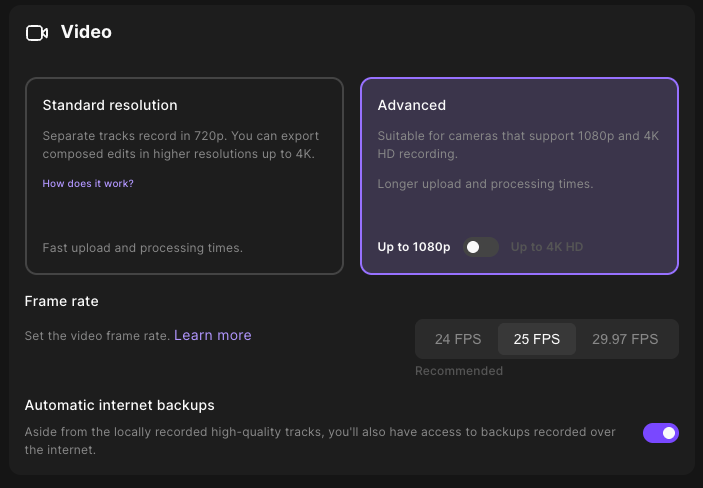
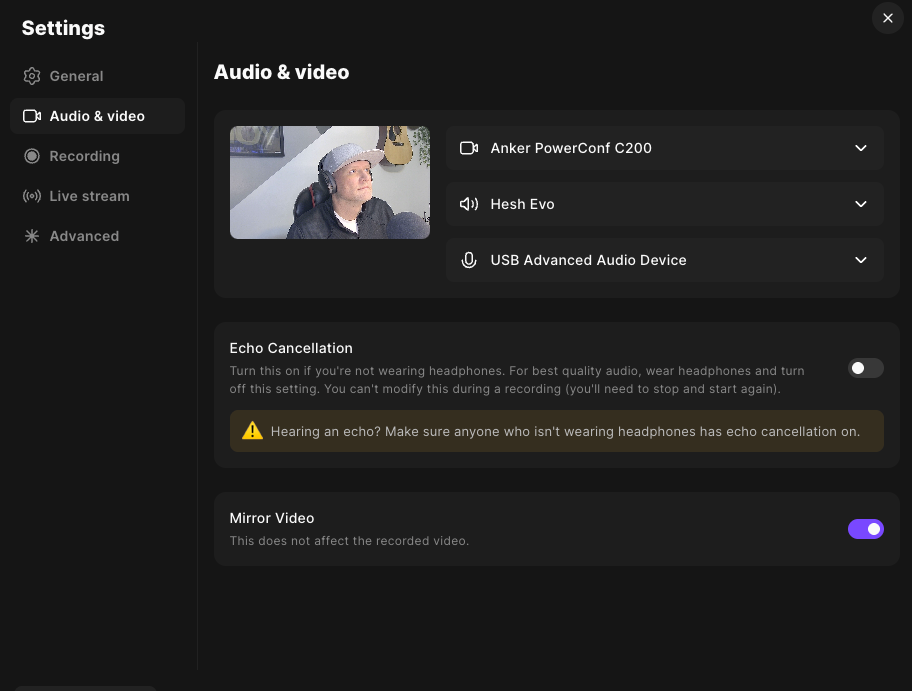
Tip#3 - Take an audio first approach
People will forgive the average video quality. They will not forgive echo, hum, or room noise.
- Headphones are optional, but recommended. If you listen through computer speakers, your built-in or accessory mic can pick up the other voices and create echo.
- Best setup: noise-canceling headphones with a mic, or a separate USB mic. Plug the mic in before you join so Riverside can see it.
- If your USB mic has a headphone jack, plug headphones into the mic and choose that mic as both input and output.
- Laptop mic is last resort. It works, but it picks up the whole room.
- Avoid Bluetooth if you can. Wired headphones are more reliable during a long recording.
- Turn off fans, HVAC if you can, dishwashers, air purifiers, and other machines that add background noise.
- Close the door. Ask others in the house or office not to interrupt.
- Soft rooms (carpet, curtains, couch, pillows) sound better than empty hard rooms. Echo is harder to fix than a plain background.
- Keep the mic a steady distance from your mouth. Don’t tap the desk, type loudly, or shuffle papers next to it.
- Do a 10-second “hello, testing 1-2-3” so the host can confirm you sound clean before record.
Tip#4 - Is Lighting Necessary?
A cheap camera with good light looks WAY BETTER than a great camera in a dark room.
- Put the main light in front of you: a window you face, a desk lamp, or a small ring/LED light.
- Do not sit with a bright window or lamp behind you. That turns you into a silhouette.
- Sit so the light hits your face evenly. Slightly above eye level is more flattering than light from below.
- If daylight is harsh, soften it with a sheer curtain or sit a little farther from the window.
- Avoid striped blinds across your face. Open them fully or close them and use a lamp instead.
- You do not need a studio lighting kit. One light in front of you is enough.
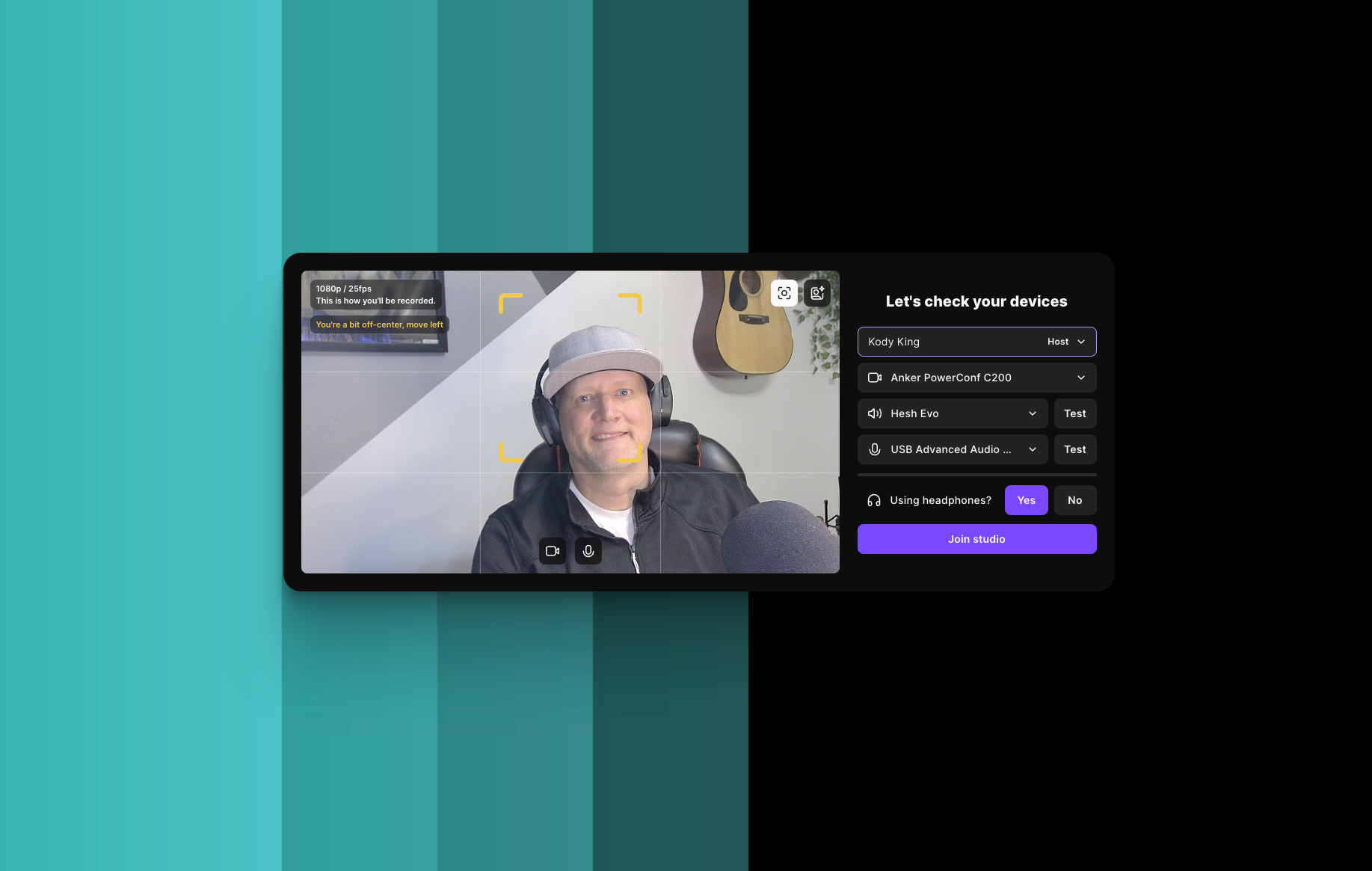
Tip#5 - Camera at eye level
The most common amateur look is a laptop on a desk shooting up from below.
- Raise the laptop or webcam to eye level (a stack of books works). The lens should look straight at you, not up from the desk.
- Frame head and shoulders, with a little space above your head. Sit about an arm’s length away.
- Look toward the camera lens when you speak, not only at the faces on screen.
- Laptop or desktop is most stable. Phone/tablet works in a pinch—landscape, propped up, not handheld.
- If you have an external webcam or can use your phone as a camera, choose that in Riverside’s device dropdown.
- Riverside has a unique framing tool to help with all of these before you join. Center yourself in the box and it will turn green.
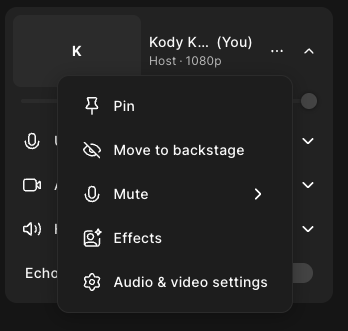
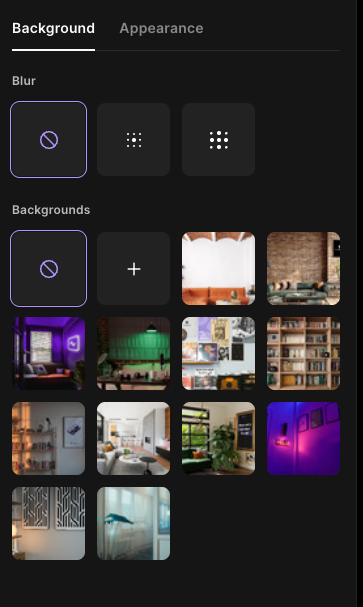
Tip#6 - Keep the background professional
What is behind you is part of the episode.
- Make sure what is behind you is professional and free of questionable items.
- Tidy the space. Move laundry, messy shelves, personal papers, and anything you would not want on camera.
- Sit a few feet away from the wall if you can. Being pressed against a wall looks flatter.
- If you are unsure, use Riverside’s free AI virtual backgrounds or background blur.
- Skip busy filters or branded Zoom-style backgrounds that look fake. Simple and clean beats clever.
Tip#7 - Join 5-10 minutes early, especially for first timers
First-time issues are almost always permissions or the wrong mic, not the conversation.
- Open the guest link 5 minutes early (10 if it's your first time) so you can settle in before record.
- Allow camera, microphone, and screen-share permissions when Chrome asks (pop-up screen).
- In the lobby, enter your name and choose the correct camera and mic from the dropdowns—especially if you plugged in a USB mic.
- Tell Riverside whether you are wearing headphones when asked.
- Confirm you can see and hear the host before anyone hits record.
- Keep the tab open the whole time. Do not refresh, switch browsers, or close the window during the session.
Tip#8 - After the recording
The session is not finished until your files are in the cloud.
- Stay in the session until you see confirmation that your recording is uploaded.
- Do not shut the laptop, close the tab, or put the computer to sleep during upload.
- If you lose the connection or leave too soon, go to riverside.com/upload and finish the upload there.
- If anything feels off (echo, dropped video, wrong mic), tell the host before you disconnect so it can be checked.
Bonus Tip
Most importantly, have fun and come ready to engage! We’re looking forward to having you on the upcoming episode.
Remember
Just to recap....
- Chrome only
- Noise canceling microphone or headphones
- Quiet room
- Light goes in front of you
- Camera at eye level
- Stay until the video and audio files finishes uploading
That's it. If you can remember those 9 best practices, we guarantee you'll have a great speaking experience on your upcoming episode.
Disclaimer
Behind The Premium Network operates on a free-to-speak model. Anyone interested may request to participate in an upcoming episode. Episode sponsors and series partners support the production of the show and do not speak for Behind The Premium’s mission or vision, or values. Likewise, our sponsors should not be read as support of any political, legal, religious, or any other influential position . Comments made by hosts, co-hosts, and guests are their own opinions and are not an endorsement by Behind The Premium, its sponsors, or other participants.